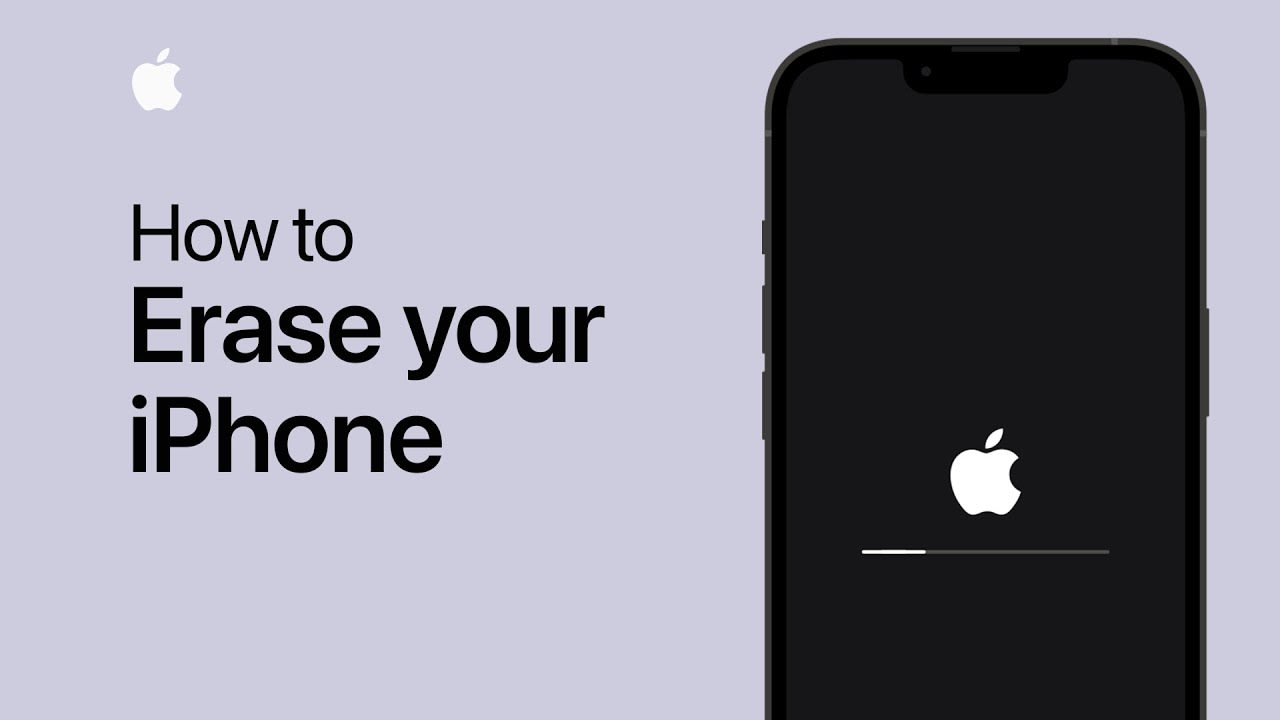
How to Factory Reset Your iPhone Safely
Important: a factory reset is permanent once completed. If your photos, contacts, messages, or app data are not backed up, they may not be recoverable after the reset.
Before You Reset: Back Up Your iPhone First
Before you erase anything, take a few minutes to back up your data. This is the part many people rush, but it is the most important step in the whole process.
Step 1: Back Up to iCloud
If you use iCloud, this is usually the easiest way to back up your iPhone before resetting it.
The backup time depends on your Wi-Fi speed and how much data is stored on the phone. Photos and videos usually take the longest.
Step 2: Back Up to a Computer
A computer backup is helpful if you do not have enough iCloud storage or you want a local backup before erasing the phone.
If you want to save passwords, Wi-Fi settings, and health data, choose an encrypted backup when available.
Check These Before You Erase Your iPhone
A factory reset is simple, but there are a few things worth checking first. This can save you from losing data, locking the phone, or creating problems for the next owner.
Make Sure Your Backup Is Complete
Do not assume your iPhone backed up automatically. Check the latest iCloud backup time or confirm your computer backup is finished before resetting.
Know Your Apple ID Password
During the erase process, your iPhone may ask for your Apple ID or Apple Account password. Make sure you know it before starting.
Think About Your eSIM
If your iPhone uses an eSIM, you may be asked whether to keep it or erase it. If you erase the eSIM, you may need your carrier to reactivate the mobile plan.
Move Important App Data
Apps like WhatsApp, banking apps, authenticator apps, and business tools may need their own backup or transfer process before you erase the phone.
Method 1: Factory Reset iPhone from Settings
This is the best method if your iPhone still works normally and you know the passcode. It is the cleanest way to erase the device before selling it, giving it away, or starting fresh.
Step-by-Step: Erase iPhone from Settings
Do not turn the phone off during the reset. Keep it charged or connected to power if the battery is low.
This method is best when the phone is working, the touchscreen responds, and you can unlock the device normally.
Method 2: Factory Reset iPhone Using a Computer
Use this method if the iPhone is freezing, not responding properly, disabled, or cannot be erased from Settings. A computer restore erases the phone and reinstalls iOS.
On Mac
On Windows
On newer Windows PCs, use the Apple Devices app. On older systems, iTunes may be used instead.
Method 3: Use Recovery Mode for Serious Problems
Recovery mode is useful if the iPhone is stuck on the Apple logo, disabled, frozen, or will not restore normally. This method can reinstall iOS, but choosing Restore will erase the phone.
Put iPhone into Recovery Mode
iPhone 8 and Newer
iPhone 7 and iPhone 7 Plus
Connect the iPhone to a computer, then hold the side button and Volume Down button together until the recovery mode screen appears.
iPhone 6s and Earlier
Connect the iPhone to a computer, then hold the Home button and side or top button together until the recovery mode screen appears.
Once the computer shows the option to Update or Restore, choose Restore if you want to erase the phone and reinstall iOS.
If you are troubleshooting and have not tried Update yet, try Update first. Restore erases the device, so only choose Restore when you are ready to wipe the phone.
After Factory Reset: Set Up Your iPhone Again
Once the reset is complete, the iPhone should show the Hello screen. From there, you can set it up as new or restore your data from a backup.
Option 1: Restore from iCloud Backup
Option 2: Set Up as a New iPhone
Choose this option if you want a clean start or if you are troubleshooting a software problem that may come back from an old backup.
- Good for fixing persistent software problems
- Useful before selling or giving away the phone
- Best when you do not want old settings copied back
- Requires reinstalling apps and setting things up again manually
When Should You Factory Reset an iPhone?
Factory reset is useful in the right situation, but it should not be the first step for every issue. Try simple fixes first if you only have a small software problem.
Factory Reset Is Useful For:
- Selling your iPhone
- Giving your iPhone to someone else
- Clearing personal data before trade-in
- Fixing persistent software issues after other steps fail
- Starting fresh after major iOS problems
- Preparing the phone before certain repair or diagnostic situations
Common Factory Reset Mistakes to Avoid
Most reset problems happen because the phone was erased too quickly without checking backups, Apple ID details, or Find My status first.
Resetting Without a Backup
If your data is not backed up, a factory reset can permanently remove photos, messages, notes, and app data.
Forgetting the Apple ID Password
You may need your Apple ID password during the reset or setup process. Make sure you know it before starting.
Erasing the eSIM by Mistake
If your phone uses eSIM, read the prompt carefully. Erasing the eSIM may mean contacting your carrier again to reactivate the service.
Restoring a Bad Backup
If you are resetting to fix a software problem, restoring the same old backup can sometimes bring the issue back.
What Gets Deleted During a Factory Reset?
A factory reset removes your personal data from the iPhone. This is why it is useful before selling the phone, but risky if you have not backed up first.
Usually Deleted from the iPhone
- Photos and videos stored only on the device
- Messages and call history
- Installed apps and app data
- Saved Wi-Fi networks
- Custom settings
- Downloaded music, files, and offline content
- Saved cards and device security settings
May Still Be Available If Synced or Backed Up
- iCloud Photos if iCloud Photos was turned on
- Contacts synced with iCloud
- Calendars and reminders synced with your account
- App Store purchase history
- Data included in your iCloud or computer backup
Soft Reset vs Factory Reset
Not every iPhone problem needs a factory reset. If your iPhone is just slow, frozen, or glitching, try a force restart first. It does not delete your data.
Force Restart iPhone Without Deleting Data
iPhone 8 and Newer
Quickly press Volume Up, quickly press Volume Down, then hold the side button until the Apple logo appears.
iPhone 7 and iPhone 7 Plus
Hold the side button and Volume Down button together until the Apple logo appears.
iPhone 6s and Earlier
Hold the Home button and side or top button together until the Apple logo appears.
When Factory Reset Does Not Fix the Problem
If your iPhone still has problems after a factory reset, the issue may not be software. Hardware faults can continue even after the phone is erased.
- Battery draining fast after reset
- Random restarts or panic logs
- No charging or slow charging
- Black screen or display lines
- Touch not responding
- Camera, speaker, or microphone problems
- Water damage symptoms
If the same issue continues after reset, get the phone diagnosed before spending more time erasing, restoring, or replacing random parts.
Final Thoughts
Factory resetting your iPhone is straightforward when you follow the right steps. Back up first, check your Apple ID details, understand what will be erased, and choose the reset method that matches your situation.
If your iPhone is working normally, resetting from Settings is usually the easiest option. If the phone is frozen, disabled, or stuck, using a computer or recovery mode may be the better method.
If the iPhone still has problems after a factory reset, the issue may be hardware-related rather than software-related.
Book a Brisbane repair in under 60 seconds.
Same-day service, genuine-grade parts, 12-month warranty. Walk-ins welcome at Paddington · Coorparoo · Calamvale.
Book a repair