Why Your iPhone Keeps Restarting Randomly
Random restarts can happen after a drop, liquid exposure, battery replacement, charging port replacement, back glass damage, screen repair, overheating, or a failed software update. The key is to check the newest panic log and look for repeated patterns.
A panic log does not always give a perfect answer, but if the same panic message appears repeatedly, it usually gives a strong clue about the part, sensor, flex cable, or circuit that needs testing.
What Are iPhone Panic Logs?
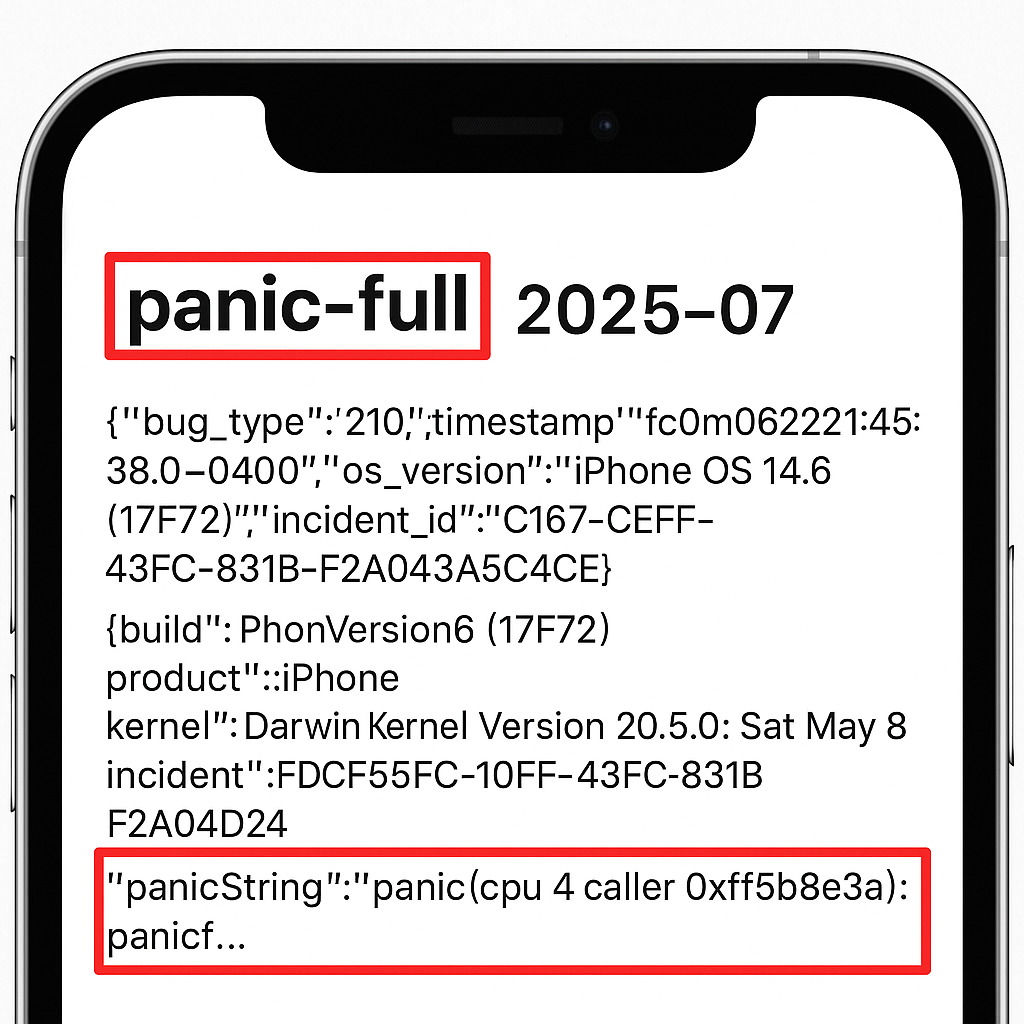
Panic logs are crash reports saved by iOS when the iPhone restarts after a serious system or hardware fault. For repair work, these logs act like a small black box. They may show missing sensor data, battery communication problems, watchdog timeouts, storage faults, CPU errors, or board-level issues.
If your iPhone restarts once after an update, it may not be serious. But if the phone restarts repeatedly, shows several panic-full files, or turns off every few minutes, the phone should be diagnosed properly.
How to Find Panic Logs on iPhone
You can check panic logs directly from the iPhone if the phone stays on long enough.
Common Signs of an iPhone Panic Log Fault
Panic-log problems do not always look the same. Some phones restart every 3 minutes. Others restart only when charging, using the camera, making calls, opening apps, or getting warm.
Every 3-Minute Restart
Often linked to missing sensor data. The phone starts normally, works for a short time, then iOS restarts because an expected sensor does not report back.
Restarts When Charging
Can point toward charging port flex, USB-C or Lightning connector, battery data line, charging circuit, or liquid damage around the port.
Restarts After Repair
If the issue started after a screen, battery, back glass, housing, or charging port repair, check the related flex cables and connectors before assuming the logic board is faulty.
Restarts With Heat or Heavy Use
Can be software, battery, thermal sensor, PMIC, CPU, or board-level related. Repeated CPU Machine Check or power errors need deeper testing.
How to Read Common iPhone Panic Log Errors
The most useful part of a panic log is the panic string. Look for repeated terms such as thermalmonitord, missing sensor, mic1, mic2, prs0, tg0b, ans2, AOP PANIC, watchdog timeout, NAND, or model-specific hex codes.
Panic Log Error Guide
thermalmonitord / Missing Sensor
Log may show: thermalmonitord, missing sensor(s), mic1, mic2, prs0, tg0b, TG0V, gas gauge.
What it may mean: iOS is missing sensor or temperature data. Depending on the model, this can point to the charging port flex, power button flex, battery data line, sensor flex, or connector issue.
Userspace Watchdog Timeout
Log may show: userspace watchdog timeout, watchdog, process timeout.
What it may mean: A system process stopped responding. Try software checks first, but repeated watchdog errors after restore can still point to hardware or board-level issues.
AOP PANIC
Log may show: AOP PANIC, sensor coprocessor, sensor communication.
What it may mean: Sensor communication fault. The repair path usually starts by isolating flex cables and checking connected sensors before board-level repair.
NAND / Storage Panic
Log may show: ans2, NAND_FindFlashMedia, storage, flash media.
What it may mean: NAND storage or board communication fault. This is normally not fixed by replacing the battery or screen.
CPU Machine Check / AppleARMPE
Log may show: CPU Machine Check, AppleARMPE, PMIC, processor, power rail.
What it may mean: Logic board instability, power management issue, overheating damage, or CPU-related fault. This normally needs advanced diagnosis.
Panic Codes by iPhone Model
Different iPhone models use different flex cables and sensor layouts. The same restart symptom can point to a different repair depending on the model. Use this guide as a direction, not a final diagnosis.
iPhone 12 Series and Older Panic Errors
These are common panic-log terms seen on iPhone 12 series and older models.
mic1 — commonly points toward charging port flex. On iPhone SE 2020, it can also be board-related.
mic2 — commonly points toward power button flex.
prs0 — commonly points toward charging port flex or pressure sensor path.
tg0b — commonly points toward battery, battery connector, or battery data line.
ans2 — commonly points toward NAND or storage-related board issues.
iPhone 13 Series Panic Codes
iPhone 13 models commonly use hex panic codes to point toward a sensor or flex area.
- 0x800 — charging port flex
- 0x1000 — proximity flex
- 0x1800 — charging port flex and proximity flex cable
- 0x400 — sandwich separation or board-level issue
If the restart began after a repair, check the connected flex cables and board connectors first.
iPhone 14 and iPhone 14 Plus Panic Codes
- 0x400000 — wireless charging flex or back glass area
- 0x100000 — charging port flex
- 0x500000 — taptic engine, charging port flex, or battery communication issue
- 0x200000 — proximity flex cable
iPhone 14 Pro and iPhone 14 Pro Max Panic Codes
- 0x80000 — proximity flex
- 0x40000 — charging port flex
- 0x10000 — power button flex
- 0x20000 — sandwich separation or board-level issue
iPhone 15 and iPhone 15 Plus Panic Codes
- 0x200000 — wireless charging flex or back glass area
- 0x80000 — charging port flex
- 0x100000 — proximity flex cable
Because iPhone 15 models use USB-C, charging-related panic faults should include USB-C port and connector inspection.
iPhone 15 Pro and iPhone 15 Pro Max Panic Codes
- 0xa1 — battery fault or battery sensor issue
- 0x300000 — charging port flex or USB-C area
- 0x400000 — wireless charging flex
- 0x700000 — charging port plus wireless charging flex
Universal iPhone 13+ Panic Code Guide
For newer models, the same decimal or hex values may appear across different iPhone generations. These codes should be used together with the exact model and the full panic string.
- 0x20 / 32 — charging circuit
- 0x40 / 64 — gas gauge
- 0x41 / 65 — battery data
- 0xa1 / 161 — battery sensor
- 0xa9 / 169 — battery data variant
- 0x400 / 1024 — gyro
- 0x800 / 2048 — charge port
- 0x1000 / 4096 — proximity
- 0x4000 / 16384 — battery sensor
- 0x20000 / 131072 — gyro on some Pro models
- 0x40000 / 262144 — charge port on some Pro models
- 0x80000 / 524288 — proximity on iPhone 14 to iPhone 17 series references
- 0x100000 / 1048576 — power button
- 0x200000 / 2097152 — front sensor or wireless coil depending on model
- 0x300000 / 3145728 — USB-C on Pro models
- 0x400000 / 4194304 — wireless coil
- 0x500000 / 5242880 — battery
Always compare the code with the model. A code that means proximity on one model may point to a different repair path on another model.
iPhone 16 and iPhone 17 Panic Log Notes
Newer iPhone models can still restart from missing sensor data, battery communication problems, USB-C charging faults, wireless charging issues, and logic board faults. The exact panic wording can change with iOS updates, so always check the newest panic-full file rather than relying only on old code tables.
- USB-C related panic: check the charge port, connector, board lines, and liquid damage.
- 0x300000 / 3145728: commonly treated as USB-C or charge-port direction on newer Pro models.
- 0x80000 / 524288: can point toward proximity or top sensor path on newer model references.
- 0x400000 / 4194304: can point toward wireless charging coil or back housing area.
- 0x500000 / 5242880: can point toward battery or battery communication.
- Repeated CPU, NAND, or watchdog errors: should be treated as possible board-level faults after software checks.
For iPhone 16 and iPhone 17 models, do not guess from one code alone. Match the panic string, model, repair history, and physical condition before choosing a repair.
Software Checks Before Hardware Repair
Not every restart is caused by hardware. If the panic log does not repeatedly point to a missing sensor or hardware code, try software checks first.
Do not factory reset a phone with important data unless you have a backup. If the fault is hardware-related, erasing the iPhone may not fix the restart problem.
When Panic Logs Point to Hardware
If the same panic code keeps returning after updates, app cleanup, and settings reset, the fault is likely hardware. This is especially true when the phone restarts at a predictable time, such as every few minutes.
Common hardware causes include:
- Faulty Lightning or USB-C charging port flex
- Missing microphone or pressure sensor data
- Battery data line fault
- Damaged proximity or front sensor flex
- Power button or volume flex problem
- Wireless charging coil or back housing damage
- Liquid damage near connectors
- Board-level separation or cracked solder joints
- NAND storage fault
- CPU, PMIC, or power rail instability
How We Diagnose iPhone Random Restarts in Brisbane
At iRepair Experts Brisbane, we do not guess the repair from the symptom alone. We check the panic log, test the battery and charging system, inspect recent repair areas, and look for physical or liquid damage before recommending the fix.
For professional diagnosis, visit iPhone Repair Brisbane.
Common Repairs for iPhone Panic Log Restarts
The correct repair depends on the panic string and model, but the most common fixes include:
- Battery replacement: when battery health, gas gauge, battery sensor, or battery data faults are confirmed.
- Charging port replacement: when mic1, prs0, charge port, USB-C, or charging circuit faults appear.
- Power button flex repair: when mic2 or power-button-related codes appear.
- Proximity/front sensor repair: when proximity, top sensor, or front sensor codes appear.
- Wireless charging flex repair: when wireless coil or back-housing-related codes appear.
- Connector repair: when the flex part is good but the board connector is damaged.
- Board-level repair: when panic logs point to NAND, CPU, PMIC, sandwich separation, or communication-line faults.
What Not to Do When Your iPhone Keeps Restarting
A restarting iPhone can get worse if it keeps crashing, overheating, or charging with a damaged port. Avoid these common mistakes:
- Do not keep charging the phone if it gets very hot.
- Do not erase the phone without a backup.
- Do not replace random parts without checking the panic log.
- Do not ignore liquid damage signs.
- Do not assume the battery is the cause just because the phone restarts.
- Do not assume the screen is the cause just because the issue started after screen repair.
- Do not keep using the phone heavily if it restarts every few minutes.
Final Thoughts
iPhone panic logs can look confusing, but they are one of the best clues for random restart problems. A repeated panic string can help separate software crashes from hardware faults like charging port flex issues, battery data faults, missing sensors, wireless charging faults, NAND storage problems, or board-level damage.
For older models, common panic terms like mic1, mic2, prs0, tg0b, and ans2 can give useful direction. For newer iPhone 13, 14, 15, 16, and 17 models, hex and decimal codes such as 0x800, 0x1000, 0x40000, 0x80000, 0x300000, and 0x500000 can help identify the repair path, but the code should always be matched with the exact model and full panic string.
Book a Brisbane repair in under 60 seconds.
Same-day service, genuine-grade parts, 12-month warranty. Walk-ins welcome at Paddington · Coorparoo · Calamvale.
Book a repair